Android Fundamentals
Lifecycles, the four components, processes & memory, background execution, the build system, storage, and how the framework actually works.
All done - nice work.
The framework basics never go away - and senior interviews probe them deeper, not less. These questions test whether you understand the platform you build on, not just the libraries on top of it.
A simple study path
Start with the Activity lifecycle, Intents, ViewModel, permissions, and the
main thread. Next learn Room, WorkManager, notifications, and process death.
Leave touch dispatch, custom Views, and runtime internals until the core topics
feel comfortable.
What gets tested
- Lifecycles - Activity & Fragment lifecycles, the fragment view-lifecycle gap, configuration changes vs process death,
ViewModelandSavedStateHandle. - The four components - Activities (launch modes, tasks), Services (started/bound/foreground), BroadcastReceivers, ContentProviders, and the Intents that connect them.
- Threading & the main thread - Handler/Looper/MessageQueue, ANRs, why work must leave the main thread.
- Memory - leaks and how to find them (LeakCanary), Context types, bitmap/OOM handling, GC.
- Background execution - WorkManager vs services vs coroutines vs AlarmManager, Doze, and background limits.
- Storage & data - scoped storage,
MediaStore/Photo Picker, DataStore vs SharedPreferences, Room. - Build & runtime - APK vs AAB, R8/ProGuard, build variants & flavors, Dalvik vs ART (AOT/JIT), Baseline Profiles, app startup.
- UI internals - the View render pipeline (measure/layout/draw), touch dispatch, custom views, RecyclerView/DiffUtil, View Binding.
- Platform - permissions, notifications, deep links/App Links, resource qualifiers, lifecycle-aware components, single-Activity architecture.
How interviewers ask
A lot of “what happens when…?” (rotation, process death, a background service after Oreo) and “how would you debug/optimize…?” (ANR, leak, slow cold start). They reward answers that connect the why - e.g. why viewLifecycleOwner exists, why ViewModel survives rotation but not process death, why services don’t run freely in the background anymore.
Prep tip: be able to trace what the system does - when it creates/destroys your process, components, and views - for any scenario. Most fundamentals questions are really “do you understand the OS’s role here?”
Start here
Core ideas you should be able to explain in plain language.
Core concepts
Explicit vs implicit Intents, and how do intent filters work?
An Intent is a messaging object to request an action from a component (start an Activity/Service, deliver a broadcast).
Explicit intent - names the exact target component. Used within your app.
startActivity(Intent(this, DetailActivity::class.java).putExtra("id", 42))Implicit intent - describes an action, and the system finds a component (often in another app) that can handle it via intent filters.
startActivity(Intent(Intent.ACTION_VIEW, Uri.parse("https://example.com")))
startActivity(Intent(Intent.ACTION_SEND).apply {
    type = "text/plain"; putExtra(Intent.EXTRA_TEXT, "Hi")
})
Intent filters (in the manifest) declare what implicit intents a component accepts, matched on action, category, and data (scheme/host/mimeType):
<activity android:name=".ShareActivity">
    <intent-filter>
        <action android:name="android.intent.action.SEND"/>
        <category android:name="android.intent.category.DEFAULT"/>
        <data android:mimeType="text/plain"/>
    </intent-filter>
</activity>
What to remember:
- Always verify an implicit intent resolves (
resolveActivity/ wrap in try-catch) or no app may handle it. - On API 30+, package visibility can filter results from discovery APIs such as
queryIntentActivities(). Add a narrow<queries>declaration when your app must discover matching handlers; do not request broad package visibility just to callstartActivity()for a known implicit action. - Deep links / App Links are implicit
ACTION_VIEWintents with a<data>URL filter; verified App Links open your app directly without a chooser. - Extras pass data via
putExtra/getXxxExtra; complex objects needParcelable.
How do runtime permissions work, and what are the modern best practices?
Since Android 6 (Marshmallow), dangerous permissions (location, camera, contacts, microphone) must be requested at runtime, not just declared in the manifest. Normal permissions (internet, vibrate) are granted at install.
The flow with the modern Activity Result API:
val launcher = registerForActivityResult(RequestPermission()) { granted ->
    if (granted) startCamera() else showRationaleOrSettings()
}

when {
    checkSelfPermission(CAMERA) == PERMISSION_GRANTED -> startCamera()
    shouldShowRequestPermissionRationale(CAMERA) -> showRationale { launcher.launch(CAMERA) }
    else -> launcher.launch(CAMERA)
}
Key behaviors & best practices:
- Request in context, just-in-time - ask for the camera permission when the user taps “take photo,” not at app launch. Show rationale if the user previously denied.
shouldShowRequestPermissionRationalecan tell you that an educational explanation is appropriate after a denial. Afalseresult is ambiguous: it can mean the permission has never been requested or that the system will no longer show the dialog. Track whether you requested it, and offer Settings only when the user deliberately tries the blocked feature again.- Location tiers -
ACCESS_COARSE/FINE, and background location (ACCESS_BACKGROUND_LOCATION) must be requested separately and is heavily scrutinized. - One-time and approximate location - one-time permission is available on Android 11+, and users on Android 12+ can grant approximate location even when the app requests precise access. Treat that partial grant as a supported outcome.
- New granular media permissions (Android 13+):
READ_MEDIA_IMAGES/VIDEO/AUDIOreplaceREAD_EXTERNAL_STORAGE; Android 14 adds partial photo access (selected photos). - Don’t over-ask - use scoped storage, the Photo Picker, Storage Access Framework, and appropriate system intents when they satisfy the use case without broad storage or media access.
How does Android's resource system and configuration qualifiers work?
Android picks the best-matching resource for the current device configuration at runtime, using qualified resource directories. You provide alternatives; the system selects.
res/
├── values/strings.xml            # default
├── values-es/strings.xml         # Spanish
├── values-night/colors.xml       # dark mode
├── drawable-hdpi/ic.png          # density buckets
├── drawable-xxhdpi/ic.png
├── layout/activity_main.xml      # default layout
├── layout-sw600dp/activity_main.xml   # tablets (smallest width ≥ 600dp)
└── mipmap-xxhdpi/ic_launcher.png # launcher icons
Common qualifiers (in precedence order): locale (-es, -fr), layout direction (-ldrtl), smallest width (-sw600dp), screen width/orientation (-w820dp, -land), night mode (-night), density (-hdpi/-xxhdpi), and API level (-v29).
Why it matters:
- Localization - translate by adding
values-<lang>folders; never hardcode strings (use@string/...andgetString()). - Dark mode -
values-night/-nightresources are auto-selected; no code branching. - Density independence - provide density buckets (or a single vector drawable that scales) so images look crisp on all screens; use dp for layout and sp for text.
- Responsive layouts -
-sw600dp/-w600dpfor tablets and foldables. - API-specific -
-v29for resources only valid on newer APIs.
What to remember:
- The system falls back to the default (
values/) when no qualified match exists. - Use vector drawables to avoid shipping many density PNGs.
- Access in code via
R.string.x,R.drawable.y; the qualifier resolution is automatic. - A configuration change (rotation, locale, dark mode) re-resolves resources - which is why the Activity recreates.
How should you implement a splash screen on modern Android?
Use the androidx.core:core-splashscreen library / the SplashScreen API (standardized in Android 12), not a dedicated splash Activity.
class MainActivity : AppCompatActivity() {
    override fun onCreate(savedInstanceState: Bundle?) {
        val splash = installSplashScreen()    // BEFORE super.onCreate / setContentView
        super.onCreate(savedInstanceState)

        // Keep the splash visible until data is ready
        splash.setKeepOnScreenCondition { viewModel.isLoading.value }
    }
}
Configure the icon/background via a theme:
<style name="Theme.App.Starting" parent="Theme.SplashScreen">
    <item name="windowSplashScreenBackground">@color/brand</item>
    <item name="windowSplashScreenAnimatedIcon">@drawable/logo</item>
    <item name="postSplashScreenTheme">@style/Theme.App</item>
</style>
Why not a splash Activity (the old anti-pattern):
- It adds an extra Activity and transition → slower startup, the opposite of the goal.
- A fake fixed-duration splash (
postDelayed) wastes the user’s time. - The system already shows a launch window; a separate Activity just delays content.
Best practices:
- The splash should cover actual startup work, not an artificial timer. Use
setKeepOnScreenConditionto hold it only while genuinely loading critical data. - Keep it brief - if startup is slow, fix startup (lazy init, Baseline Profiles), don’t pad it with a splash.
- Provide an animated icon + brand background through the theme; it integrates with the system launch animation seamlessly.
- On pre-12 devices the library backports the same behavior.
View Binding vs Data Binding vs findViewById - what's the difference?
Three ways to reference views in the View system, increasingly capable:
findViewById - the original: look up a view by id at runtime.
- Problems: not null-safe (returns a view that might be wrong/absent → crash), not type-safe (casts), and verbose.
View Binding - generates a binding class per layout with typed, non-null references to all id’d views.
val binding = ActivityMainBinding.inflate(layoutInflater)
setContentView(binding.root)
binding.titleText.text = "Hi" // typed, non-null, no findViewById- Benefits: null-safe and type-safe, near-zero overhead, minimal setup. The recommended replacement for
findViewById.
Data Binding - a superset that also supports binding expressions in XML, linking layouts directly to data/observables.
<TextView android:text="@{viewModel.title}" />
<Button android:onClick="@{() -> viewModel.submit()}" />- Benefits: two-way binding, observable data in layouts, binding adapters.
- Costs: slower builds (annotation processing), logic-in-XML can be hard to debug, and steeper complexity. Largely superseded by Compose for new code; many teams prefer View Binding + observing state in code over Data Binding.
How to choose:
- New View-based code → View Binding (simple, safe, fast).
- Legacy projects already using Data Binding → keep it, but it’s not recommended for new adoption.
- New UI → Compose sidesteps all three.
Note: View Binding ≠ Data Binding - View Binding only generates references (no XML expressions), which is exactly why it’s faster and simpler.
Walk through the Activity lifecycle and what happens on rotation.
Think of the Activity lifecycle as three questions: Does the Activity exist? Is it visible? Can the user interact with it? The main callbacks are:
onCreate- create this Activity instance and set up its UI.onStart- activity becomes visible.onResume- activity is in the foreground and interactive.onPause- losing focus (a dialog, another activity in front). Keep this fast.onStop- no longer visible.onDestroy- being torn down (finished or recreated).
On rotation, Android normally destroys the current Activity instance and creates a new one. You will usually see a sequence like this:
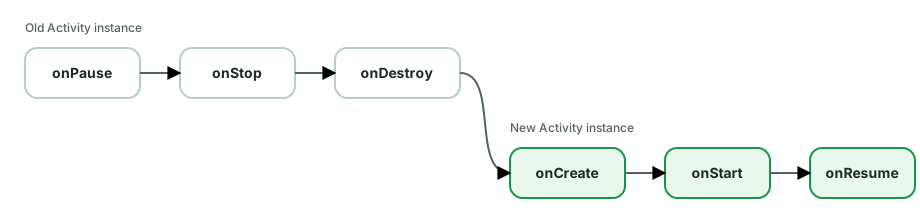
The exact timing of state-saving callbacks can vary, so do not write logic that depends on one precise callback order. The important point is that Activity fields belong to the old instance and are lost.
ViewModelkeeps screen data across configuration changes.onSaveInstanceState,SavedStateHandle, orrememberSaveablekeep small pieces of restorable UI state, such as a selected tab or search query.
Common follow-up: Process death also removes the ViewModel because the whole app process is gone. Restore the minimum state needed to rebuild the screen and load durable data again from a database or network source.
What are the different types of Context, and when do you use each?
Context is the handle to app/system resources and services. The main flavors:
- Application context - tied to the app’s lifetime. Get it via
applicationContext/getApplication(). Use for things that must outlive any single screen: singletons, databases, WorkManager,DataStore, app-wide managers. - Activity context - tied to one Activity’s lifetime. Carries theme/config. Use for UI work: inflating layouts, starting activities, showing dialogs, theming.
- Service / BroadcastReceiver context - scoped to those components.
The golden rule - match the context’s lifetime to the object that holds it:
// ✅ singleton holds app context - same lifetime, no leak
class Analytics(context: Context) {
    private val appContext = context.applicationContext
}

// ❌ singleton (or static/ViewModel) holding an Activity context → leaks the Activity
object Cache { lateinit var ctx: Context }   // if assigned an Activity, it leaks
Why it matters: holding an Activity context in something longer-lived (a static field, singleton, ViewModel, or a long-running thread) prevents the Activity from being garbage-collected after it’s destroyed - a classic memory leak.
Things that need a specific context:
- Dialogs / theming / inflation → need an Activity (or themed) context; the app context lacks the right theme and can crash/misrender.
- Toasts, system services, resources → app context is fine.
What is a ViewModel, how does it survive configuration changes, and what should it not hold?
A ViewModel holds and manages UI-related state and survives configuration changes, so data and in-flight work aren’t lost on rotation.
How it survives: the ViewModel is stored in a ViewModelStore owned by the Activity/Fragment/NavBackStackEntry. On a configuration change, the Activity is recreated but its ViewModelStore is retained (via onRetainNonConfigurationInstance internally) and handed to the new instance. So you get the same ViewModel back. It’s cleared (onCleared()) only when the owner is permanently gone (finished, popped) - not on rotation.
class FeedViewModel(private val repo: FeedRepository) : ViewModel() {
    private val _state = MutableStateFlow(FeedUiState())
    val state = _state.asStateFlow()
    // viewModelScope cancelled in onCleared()
}
What a ViewModel must NOT hold:
Contextof an Activity, Views, Fragments, or anything view-bound - these outlive a config change while the ViewModel persists, so holding them leaks the old Activity. If you need a context, useAndroidViewModel’s application context.- It shouldn’t reach into the UI; it exposes state the UI observes (one-way).
Key points:
- It does not survive process death - pair with
SavedStateHandlefor state that must. viewModelScopeties coroutines to the ViewModel lifecycle (cancelled inonCleared).- Scope it correctly:
viewModels()(Activity/Fragment),activityViewModels()(share across fragments), orhiltViewModel()(per nav destination). - Construct it with a factory (or Hilt) to inject dependencies.
What is the Application class, and what should (and shouldn't) you do in it?
The Application object is a singleton created before any Activity/Service, living for the whole process lifetime. It’s the global entry point and the holder of application-wide state.
class MyApp : Application() {
    override fun onCreate() {
        super.onCreate()
        // app-wide, must-happen-early init
    }
}
Register it in the manifest (<application android:name=".MyApp">).
Legitimate uses:
- Critical, early initialization - crash reporting, DI graph (Hilt generates
Applicationintegration), logging. - A safe source of application context for app-lifetime objects.
ProcessLifecycleOwner/registerActivityLifecycleCallbacksfor app-wide foreground/background awareness.
What NOT to do (the important part - onCreate runs on every cold start and blocks the first frame):
- No heavy/synchronous work - network, disk, big SDK init on the main thread here directly slows cold start and risks ANR. Lazy-init non-critical SDKs (or use the App Startup library) instead.
- Don’t store mutable global state as a substitute for proper architecture - it’s not a dumping ground for “global variables.”
- Don’t assume it survives process death with in-memory state - the process can be recreated; persist what must survive.
What to remember:
- It’s a singleton tied to the process - and there can be multiple processes (
android:process), each with its ownApplicationinstance. - Keep
onCreatelean; defer everything you can - startup time is a real metric (Android vitals). - Prefer Hilt/DI and the App Startup library over manual init soup.
What's the difference between an APK and an Android App Bundle (AAB)?
- APK - an installable package. A traditional universal APK contains code and resources for every supported density, ABI, and language; modern installs can instead consist of a base APK plus configuration and feature split APKs selected for that device.
- AAB (Android App Bundle) - a publishing format (
.aab) you upload to Play. It’s not installed directly; Play uses it to generate and serve optimized APKs per device via Play Feature/Dynamic Delivery.
The win - smaller downloads. With an AAB, Play’s split APKs ship only what a given device needs:
- Density splits - only that device’s drawable density.
- ABI splits - only that device’s CPU architecture (arm64 vs x86).
- Language splits - only the user’s languages.
So a user doesn’t download xxhdpi assets, French strings, and x86 libraries they’ll never use. AAB is required for new apps on Google Play (since Aug 2021).
Related capabilities AAB enables:
- Dynamic feature modules - download features on demand (
Play Feature Delivery), shrinking the base install. - Play Asset Delivery - stream large game assets.
- Play App Signing - Google holds the signing key and re-signs the generated APKs (a consequence to understand: you upload with an upload key, Play signs with the app key).
What to remember:
- AAB ≠ APK: AAB is for upload/distribution; APK is for install.
- You can still build a universal APK from a bundle (
bundletool) for sideloading/testing. - It reduces app size without code changes - the splits are automatic.
Use it in practice
Common implementation choices, debugging, and trade-offs.
Core concepts
Explain Activity launch modes and the related intent flags.
Launch modes control how an Activity instance relates to the task back stack. Set them in the manifest (android:launchMode) or via intent flags.
standard(default) - a new instance every time it’s launched, even if one already exists. Can have multiple copies in the stack.singleTop- if an instance is already at the top of the stack, reuse it and deliver the intent toonNewIntent()instead of creating a new one. If it’s not on top, a new instance is created.singleTask- at most one instance in the task. If it exists, it’s brought to the front and everything above it is cleared (onNewIntentis called). Common for an app’s entry/root activity.singleInstance- likesingleTask, but the activity is the only one in its task - nothing else can be added to that task. Rare (e.g. a launcher or a separate-window screen).
Equivalent intent flags (set at launch time, no manifest change):
FLAG_ACTIVITY_NEW_TASK- start in a new/ existing task.FLAG_ACTIVITY_SINGLE_TOP- likesingleTopfor this launch.FLAG_ACTIVITY_CLEAR_TOP- if the activity exists in the stack, clear everything above it.FLAG_ACTIVITY_CLEAR_TASK(withNEW_TASK) - wipe the task and start fresh (e.g. after logout).
onNewIntent() is the callback you must handle when an existing instance is reused - the new Intent arrives there, not in onCreate. Forgetting it means you process the old intent’s data.
Practical uses: singleTask/CLEAR_TOP for “go home” buttons and notification taps that shouldn’t stack duplicates; singleTop for a search activity re-launched with a new query; CLEAR_TASK + NEW_TASK to reset the stack on logout.
Explain build types, product flavors, and build variants in Gradle.
Three related concepts let you produce multiple versions of an app from one codebase:
- Build types - how the app is built. Default
debugandrelease; differ in signing,minifyEnabled,debuggable,applicationIdSuffix, etc. You can add custom ones (e.g.staging). - Product flavors - what the app is. Different variants like
free/paid, ordev/prod(different API endpoints, app names, feature sets). Grouped by flavor dimensions. - Build variant = build type × flavor. With flavors
free/paidand typesdebug/releaseyou get four:freeDebug,freeRelease,paidDebug,paidRelease.
android {
    flavorDimensions += "tier"
    productFlavors {
        create("free")  { dimension = "tier"; applicationIdSuffix = ".free" }
        create("paid")  { dimension = "tier" }
    }
    buildTypes {
        getByName("release") { isMinifyEnabled = true; signingConfig = ... }
        create("staging")    { initWith(getByName("debug")); applicationIdSuffix = ".staging" }
    }
}
What you control per variant:
applicationId/suffix - so debug/staging/free can install alongside release (different package names).buildConfigFieldandresValue- inject constants (API base URL, feature flags) and resources per variant.- Source sets -
src/free/,src/debug/directories override/add code and resources for that variant. - Signing configs, ProGuard rules, manifest placeholders.
Common real-world use: dev/prod flavors pointing at different backends, a staging build type for QA, and applicationIdSuffix so testers keep prod + staging installed simultaneously.
Explain Handler, Looper, and MessageQueue. How does the main thread work?
This trio is the message-passing machinery behind Android’s main thread.
MessageQueue- a queue ofMessage/Runnabletasks to be processed, ordered by time.Looper- an infinite loop bound to a thread that pulls messages off the queue and dispatches them, one at a time. One Looper per thread (Looper.prepare()+Looper.loop()).Handler- the interface to post messages/runnables onto a Looper’s queue and to handle them when they’re dispatched. A Handler is bound to the Looper of the thread that created it (or one you pass).
val mainHandler = Handler(Looper.getMainLooper())
mainHandler.post { textView.text = "Done" }        // run on main thread
mainHandler.postDelayed({ /* ... */ }, 1000)        // schedule for later
The main (UI) thread is a thread running a Looper. The framework calls Looper.loop() for you; every lifecycle callback, touch event, and View.invalidate is a message dispatched through the main MessageQueue. That’s why:
- All UI updates must happen on the main thread - it’s the single thread draining that queue.
- Blocking the main thread (heavy work in a message) stalls the queue → no frames drawn → ANR.
- You “go back to the UI thread” by posting to the main
Handler(or, in coroutines,Dispatchers.Main).
Where it still matters today: even though you use coroutines now, Dispatchers.Main is built on the main Looper, and HandlerThread (a thread with its own Looper) backs some libraries (e.g. camera/sensor callbacks). Understanding it explains why runOnUiThread, View.post, and Dispatchers.Main exist.
How do deep links and Android App Links work?
A deep link is a URI that opens a specific screen in your app. There are tiers:
1. Basic deep link - an intent filter on ACTION_VIEW with a custom scheme or http(s):
<intent-filter>
    <action android:name="android.intent.action.VIEW"/>
    <category android:name="android.intent.category.DEFAULT"/>
    <category android:name="android.intent.category.BROWSABLE"/>
    <data android:scheme="https" android:host="example.com" android:pathPrefix="/item"/>
</intent-filter>
Problem: for a plain web link, Android may show a disambiguation chooser (“open with browser or app?”).
2. Android App Links (verified http(s) links) - the upgrade. Add
android:autoVerify="true" and host an assetlinks.json Digital Asset Links
file at https://example.com/.well-known/assetlinks.json listing your app’s
package and signing fingerprint. Android verifies the domain-to-app
association, allowing your app to become the default handler without the
generic chooser. Verification can fail, and users can change supported-link
preferences, so the website must remain a valid fallback.
3. Custom scheme (myapp://) - works, but any installed app can claim the
same scheme. Prefer claimed HTTPS redirects (App Links) for security-sensitive
flows such as OAuth when the provider supports them; otherwise use a
high-entropy redirect and validate the returned state.
Handling them:
- Read the
Intent.dataURI in the target Activity (and handleonNewIntentforsingleTop). - Navigation Compose / Nav component support deep links declaratively (
navDeepLink { uriPattern = ... }), routing the URI to the right destination and building a proper back stack.
What to remember:
- App Links (verified) vs deep links (unverified): App Links skip the chooser via
assetlinks.jsondomain verification; plain deep links may prompt. - Handle parameters/IDs from the URI, validate them, and build a sensible back stack (
TaskStackBuilder/ nav graph) so Back works. - Test with
adb shell am start -a android.intent.action.VIEW -d "https://example.com/item/42".
How do Doze mode and background execution limits affect your app?
Android has steadily tightened background execution to save battery. The major mechanisms:
Doze mode (Android 6+) - when the device is unplugged, stationary, and screen off for a while, the system enters Doze: it batches and defers background work into periodic maintenance windows. During Doze:
- Network access is suspended for apps (except during windows).
- Wakelocks ignored, alarms deferred (
AlarmManagernon-exact), jobs/syncs deferred. - App Standby does the same for individual unused apps.
Background service limits (Android 8+) - apps in the background can’t start background services; the system kills them shortly after the app leaves the foreground. Implicit broadcasts are mostly disallowed in the manifest.
Background location limits (Android 8/10+) - background apps get location updates only a few times per hour; background access needs a separate permission.
App Standby Buckets (Android 9+) - the system buckets apps (active / working set / frequent / rare / restricted) by usage and throttles their jobs/alarms accordingly.
How to work with the system (not fight it):
- WorkManager for deferrable background work - it respects Doze/buckets and runs in maintenance windows.
- FCM high-priority messages only for genuinely urgent, user-visible pushes; misuse can cause delivery to be deprioritized.
- Exact alarms only for user-intentioned actions that truly require precise
timing. Check
canScheduleExactAlarms()before calling exact APIs and provide an inexact fallback when special access is unavailable. - Foreground service (with notification) for ongoing user-visible work that must run now.
What to avoid: holding wakelocks, polling, or expecting precise background timing - the OS will defer or kill it. Requesting battery-optimization exemption is heavily restricted by Play and should be a last resort.
How do notifications work on modern Android?
Posting a notification requires a few things on modern Android:
1. A notification channel (Android 8+, mandatory). Every notification belongs to a channel; the user controls importance, sound, vibration, and can mute a channel - you can’t override their choice. Create channels once (e.g. in Application.onCreate).
val channel = NotificationChannel(
    "messages", "Messages", NotificationManager.IMPORTANCE_HIGH,
)
notificationManager.createNotificationChannel(channel)
2. Build and post:
val n = NotificationCompat.Builder(context, "messages")
    .setSmallIcon(R.drawable.ic_msg)
    .setContentTitle("New message")
    .setContentText(body)
    .setContentIntent(pendingIntent)        // tap action (PendingIntent)
    .setAutoCancel(true)
    .build()
NotificationManagerCompat.from(context).notify(id, n)
3. Runtime permission (Android 13+). POST_NOTIFICATIONS is a runtime
permission for non-exempt notifications. Ask at a moment where the benefit is
clear, handle denial as a normal product state, and do not assume that creating
a channel means the app may post.
What to remember:
- Importance is set on the channel, not the notification, and the user has final say.
IMPORTANCE_HIGH= heads-up;LOW/MIN= quiet. - Channel groups, and you can’t change a channel’s importance after creation (user owns it).
PendingIntentpowers tap and action buttons - useFLAG_IMMUTABLE(except direct-reply, which needsMUTABLE).- Rich features: styles (
BigTextStyle,MessagingStyle,MediaStyle), actions, direct reply (RemoteInput), progress, grouping/summary, and foreground service notifications. NotificationCompatfor backward compatibility.
How do you handle large bitmaps without running out of memory?
Bitmaps are the #1 cause of OutOfMemoryError because they’re huge in memory: a bitmap’s RAM ≈ width × height × bytesPerPixel. A 4000×3000 photo at ARGB_8888 (4 bytes/px) is ~48 MB - regardless of the file’s compressed size on disk.
Techniques:
1. Downsample when decoding - never decode full-res for a thumbnail. Use inSampleSize to load a scaled version:
val opts = BitmapFactory.Options().apply { inJustDecodeBounds = true }
BitmapFactory.decodeFile(path, opts)              // read dimensions only
opts.inSampleSize = calculateInSampleSize(opts, reqWidth, reqHeight)
opts.inJustDecodeBounds = false
val bitmap = BitmapFactory.decodeFile(path, opts) // decode scaled
2. Pick the right config - RGB_565 (2 bytes/px) halves memory vs ARGB_8888 when you don’t need alpha; HARDWARE bitmaps keep pixels in GPU memory.
3. Use an image library - Coil (Compose-native) or Glide handle all of this: automatic downsampling to the target view/size, memory + disk LRU caches, bitmap pooling/reuse, request cancellation when a view is recycled, and lifecycle awareness. In practice you almost never hand-decode.
AsyncImage(model = url, contentDescription = null, modifier = Modifier.size(96.dp))4. Other practices:
- Decode off the main thread (coroutines) to avoid jank/ANR.
- In lists, cancel loads for recycled items and size to the actual view dimensions.
- Bound caches; don’t hold strong references to bitmaps you no longer show.
- For very large images, consider
BitmapRegionDecoder(tiles) for pan/zoom.
How does R8 shrink, optimize, and obfuscate an Android app, and when are keep rules required?
R8 is the default code shrinker/optimizer (it replaced ProGuard, reading the same proguard-rules.pro config). Enabled with minifyEnabled true on release builds, it does four things:
- Shrinking (tree-shaking) - removes unused classes, methods, and fields. Smaller APK.
- Optimization - inlining, removing dead branches, merging classes, simplifying code.
- Obfuscation - renames classes/methods to short meaningless names (
a,b) - smaller and harder to reverse-engineer. - Resource shrinking (
shrinkResources true) - drops unused resources.
buildTypes {
    release {
        isMinifyEnabled = true
        isShrinkResources = true
        proguardFiles(getDefaultProguardFile("proguard-android-optimize.txt"), "proguard-rules.pro")
    }
}
The catch - reflection breaks under R8. R8 does static analysis; code accessed only via reflection, JNI, or by name (Gson/Moshi models, deserialized classes, reflective DI, Class.forName) looks “unused” and gets removed or renamed. That’s what -keep rules are for:
-keep class com.app.model.** { *; }          # don't remove/rename my JSON models
-keepclassmembers class ... { @SerializedName <fields>; }
-keepattributes Signature, *Annotation*       # keep generics/annotations for reflection
What to remember:
- Always test the release/minified build - bugs from over-aggressive removal only appear there (crashes like
NoSuchMethodException, broken JSON parsing). - Use libraries’ consumer ProGuard rules (Retrofit/Gson/Moshi ship them) so you don’t hand-write everything.
- Keep mapping.txt (
build/outputs/mapping) - upload it to Play to de-obfuscate crash stack traces; without it, production crashes are unreadable. - Prefer codegen (Moshi/kotlinx.serialization) over reflection to minimize keep rules.
How does RecyclerView work, and what does DiffUtil do?
RecyclerView efficiently displays large lists by recycling a small pool of item views instead of creating one per data item. The pieces:
ViewHolder- caches the views for one row so you don’tfindViewByIdrepeatedly.Adapter-onCreateViewHolder(inflate, called rarely) +onBindViewHolder(bind data to a recycled holder, called often). The recycling is the whole point: as you scroll, off-screen holders are rebound with new data.LayoutManager- positions items (Linear,Grid,StaggeredGrid).ItemAnimator,ItemDecoration- animations and dividers/spacing.
DiffUtil computes the minimal set of changes between an old and new list (using a Myers diff) so you can dispatch precise notifyItemInserted/Removed/Changed instead of notifyDataSetChanged().
class MyDiff : DiffUtil.ItemCallback<Item>() {
    override fun areItemsTheSame(a: Item, b: Item) = a.id == b.id        // same entity?
    override fun areContentsTheSame(a: Item, b: Item) = a == b           // same content?
}
class MyAdapter : ListAdapter<Item, MyVH>(MyDiff()) { ... }
adapter.submitList(newList)   // diff + granular updates, with animations
Why it matters:
notifyDataSetChanged()rebinds everything and kills animations/scroll position - wasteful.- DiffUtil gives smooth animations and only rebinds changed rows.
areItemsTheSame= same identity (by id);areContentsTheSame= same data (drives the “changed” animation). Getting these wrong causes flicker or missed updates.ListAdapterwraps DiffUtil and runs it on a background thread viaAsyncListDiffer- the recommended adapter base class.
Compose parallel: LazyColumn is the Compose equivalent; its items(key = {}) plays the role of DiffUtil’s identity matching.
How is process death different from a configuration change?
Two different ways your UI state can be destroyed - and they need different tools.
Configuration change (rotation, locale, dark mode, multi-window): the system destroys and recreates the Activity immediately, but the process stays alive. So in-memory objects that survive recreation are intact.
- Handled by
ViewModel- it survives config changes (it’s retained across the recreate), so your data and in-flight coroutines aren’t lost.
Process death (the system reclaims your app’s memory while it is in the background): the entire process is killed. The ViewModel, static fields, singletons - everything in memory is gone. When the user returns through the retained task, Android creates a new process and Activity and can restore saved UI state.
- Use saved state -
onSaveInstanceState,rememberSaveable, orSavedStateHandle- for small transient values needed to reconstruct the screen. Android keeps that serialized state outside your process; it is not a durable database and is cleared when the user fully dismisses the task. - Use local persistence such as Room or DataStore for application data that must survive process death, task dismissal, and later app launches.
class SearchViewModel(private val handle: SavedStateHandle) : ViewModel() {
    // Survives BOTH config change AND process death
    val query: StateFlow<String> = handle.getStateFlow("query", "")
    fun setQuery(q: String) { handle["query"] = q }
}| Config change | Process death | |
|---|---|---|
| Process | survives | killed |
| ViewModel | survives | lost |
SavedStateHandle / saved-state Bundle | survives | restored after system-initiated death |
Rules:
- Put screen data and ongoing work in the ViewModel (handles config changes for free).
- Put small, essential UI state (a query, scroll position, selected tab) in
SavedStateHandle/rememberSaveableso it survives process death too. - Keep saved state small - the Bundle is for identifiers and UI state, not large data. Re-fetch big data from a repository on restore.
- Test configuration recreation with “Don’t keep activities.” Test actual
process death separately - for example, background the app and use
adb shell am kill <package>- because destroying Activities is not the same event as killing the process.
Parcelable vs Serializable on Android - why is Parcelable preferred?
Both let you pass objects between components (in Intent extras / Bundle), but they work very differently.
Serializable- Java’s general-purpose object serialization mechanism. It is convenient, but reflective graph serialization adds overhead and its long-term format carries compatibility and security concerns.Parcelable- Android’s compact, IPC-oriented flattening contract. Its generated or explicit read/write order avoids reflective graph traversal and matches what Bundle and Binder APIs expect.
The pain point Parcelable used to have was boilerplate (writeToParcel, CREATOR, describeContents). Kotlin removes it with @Parcelize:
@Parcelize
data class User(val id: Int, val name: String) : Parcelable
// that's it - writeToParcel/CREATOR are generated
What to remember:
- Prefer primitive extras or stable IDs when that is all the destination needs.
Use
Parcelable(@Parcelize) for a small structured value that genuinely must cross an Android component or Binder boundary. Parcelis for in-memory IPC / transient transport, not persistence - never write a Parcel to disk or rely on its format across versions.- There’s a Binder transaction size limit (~1MB for
TransactionTooLargeException) - don’t pass large objects/bitmaps through Intents; pass an ID and load the data, or use a shared repository. - For passing data between navigation destinations, pass IDs, not big Parcelables.
Walk through the Fragment lifecycle. Why is the View lifecycle separate?
A Fragment has two lifecycles - the fragment instance and its view - and the gap between them is the source of most fragment bugs.
Fragment callbacks:
onAttach → onCreate → onCreateView → onViewCreated → onStart → onResume → … → onPause → onStop → onDestroyView → onDestroy → onDetach.
The key insight: onCreateView/onDestroyView can run multiple times while the fragment instance stays alive. When a fragment goes on the back stack, its view is destroyed (onDestroyView) but the fragment object survives. Coming back, onCreateView runs again - a new view.
Consequences interviewers probe:
- Use
viewLifecycleOwner, notthis(the fragment), when observing LiveData/flows in a fragment. Observing with the fragment lifecycle inonCreateViewleaks: afteronDestroyViewthe old view is gone but the observer (tied to the longer-lived fragment) keeps firing and may touch a dead view, or you get duplicate observers when the view is recreated.viewModel.data.observe(viewLifecycleOwner) { render(it) } - Null out ViewBinding in
onDestroyView(_binding = null) - the binding references the destroyed view and leaks it otherwise. - Collect flows in
onViewCreatedwithviewLifecycleOwner.lifecycleScope+repeatOnLifecycle.
Why fragments at all: reusable UI chunks with their own lifecycle, used by Navigation, ViewPager, and multi-pane (tablet) layouts. Modern apps often use a single-Activity architecture with fragment (or Compose) destinations.
What are cold, warm, and hot starts, and how do you optimize app startup?
The three startup types, by how much already exists:
- Cold start - the process doesn’t exist. The system creates the process, the
Applicationobject, then the first Activity. Slowest and the one you optimize. - Warm start - the process is alive but the Activity must be recreated (e.g. user backed out then returned). Some work is reused.
- Hot start - the Activity is already in memory; just brought to the foreground. Fastest (mostly a redraw).
What runs at cold start (and where time goes):
Application.onCreate() → Activity onCreate → first frame drawn (time-to-initial-display).
Optimizations:
- Trim
Application.onCreate- it runs on every cold start and blocks the first frame. Lazy-initialize SDKs; defer non-critical init off the critical path. - App Startup library - consolidate
ContentProvider-based library auto-initializers into one, and initialize lazily. - Avoid heavy work in the first Activity’s
onCreate; load data async (coroutines) and show content progressively. - Baseline Profiles - ship AOT-compiled profiles of startup/critical paths so the first runs aren’t interpreted/JIT’d. Big, measurable win for cold start and scroll jank.
- Modern Splash Screen API (
androidx.core.splashscreen) - a system splash you keep on screen until content is ready; avoid a separate splash Activity that adds a hop. - Reduce dependency graph work at startup (DI graph creation), minimize
MultiDeximpact on older devices, and avoid synchronous disk/network.
Measure with:
adb shell am start -W(reportsTotalTime), Macrobenchmark (StartupTimingMetric), Perfetto/system traces, and Android vitals (startup time in production).- Distinguish time-to-initial-display (TTID) from time-to-full-display (TTFD) - report TTFD with
reportFullyDrawn().
What are common memory leaks on Android, and how do you detect them?
A memory leak on Android usually means a long-lived object holds a reference to a short-lived one (often an Activity/Fragment/View), preventing GC after it’s destroyed.
The usual culprits:
- Inner classes / anonymous listeners / Handlers holding an implicit reference to the outer Activity, posted with a delay that outlives the Activity. (A
Handler.postDelayedof 60s pins the Activity.) - Static fields / singletons / objects holding a
Context,View, or callback. Use application context for app-lifetime objects. - ViewModel holding a View/Activity context - survives config change, leaks the old Activity.
- Listeners/observers not unregistered -
BroadcastReceiver,LocationListener,LiveData.observeForever, RxJava/Flow subscriptions,ViewTreeObserver. - Coroutines in the wrong scope -
GlobalScope/unscoped jobs capturing UI. - Fragment view leaks - not nulling
ViewBindinginonDestroyView, or observing with the fragment instead ofviewLifecycleOwner. - Bitmaps / large caches not bounded or recycled.
Detection tools:
- LeakCanary - the standard. It watches destroyed Activities/Fragments/ViewModels, triggers a heap dump when one isn’t GC’d, and shows the leak trace (the reference chain holding it). First thing to add when investigating.
- Android Studio Memory Profiler - capture a heap dump, look for retained Activities, inspect references, force GC, and track allocations.
- StrictMode can flag some leaks (e.g. unclosed resources).
The fix pattern: break the reference chain - use weak references or app context, unregister in the symmetric lifecycle callback, scope coroutines to a lifecycle, and null out view-bound fields on destroy.
What are the types of Services? Started vs bound vs foreground, and the modern alternatives.
A Service runs without a UI. Three usage patterns:
Started service - launched with startService/startForegroundService, runs until it stops itself (stopSelf) or is stopped. For ongoing work not tied to a UI.
Bound service - components bindService to get a client-server interface (IBinder) and call into it. Lives while clients are bound; great for in-process APIs (e.g. a media playback controller).
Foreground service - a started service that shows a persistent notification and is far less likely to be killed. Required for user-visible ongoing work (music, navigation, active location, calls). On Android 14+ you must declare a foregroundServiceType and have a matching permission/justification.
val notification = buildNotification()
startForeground(ID, notification, FOREGROUND_SERVICE_TYPE_MEDIA_PLAYBACK)
The big modern caveat - background limits. Since Android 8 (Oreo), apps can’t freely run background services; the system kills them. So:
- Deferrable, guaranteed background work (sync, upload, periodic jobs) →
WorkManager, not a Service. - In-app async work while the app is alive → coroutines (
viewModelScope), not a Service. - Services are now reserved for genuinely immediate, ongoing, user-aware work - and then almost always foreground services.
Other points:
- A Service runs on the main thread by default - you must offload work to a background thread/coroutine yourself (it’s not automatically backgrounded).
onStartCommandreturn value (START_STICKYetc.) controls restart behavior after the system kills it.
What causes an ANR, and how do you prevent and diagnose one?
An ANR (Application Not Responding) happens when the main thread is blocked too long and can’t process input or draw. The system thresholds:
- ~5 seconds - input event (touch/key) not handled.
- ~10 seconds -
BroadcastReceiver.onReceivenot finished (foreground). - Service /
ContentProvidertimeouts, including a foreground service that fails to callstartForeground()within the system deadline afterstartForegroundService().
Common causes:
- Heavy work on the main thread - network, disk/database I/O, big JSON parsing, bitmap decoding.
- Blocking calls -
Thread.sleep, synchronous network,runBlockingon Main, a lock held by a slow thread. - Deadlocks between the main thread and a background lock.
- Doing too much in lifecycle callbacks or
onReceive. - A janky main thread under load (binder calls, too many/large frames).
Prevention:
- Move all I/O and CPU work off Main - coroutines with
Dispatchers.IO/Default,WorkManagerfor background. - Keep frame work under 16ms (60fps); avoid synchronous work in
onCreate/onBind/onReceive. - Use
StrictModein debug to catch accidental disk/network on the main thread. - Use
goAsync()or hand off in receivers; don’t block.
Diagnosis:
/data/anr/traces.txt(or the bug report) shows the main-thread stack at the moment of the ANR - read it to find what was blocking.- Play Console → Android vitals aggregates ANR rate in production with stacks.
- Perfetto / systrace / Macrobenchmark and the CPU profiler to find main-thread stalls.
What is a BroadcastReceiver, and what changed with background restrictions?
A BroadcastReceiver responds to system-wide or app broadcast events (connectivity change, boot completed, battery low, or your own custom broadcasts).
Two ways to register:
- Manifest-declared (static) - listens even when the app isn’t running. Since Android 8, most implicit system broadcasts can no longer be declared in the manifest (to curb apps waking up constantly). A few exceptions remain (e.g.
BOOT_COMPLETED,LOCKED_BOOT_COMPLETED). - Context-registered (dynamic) -
registerReceiver()in code; only active while your component is alive. You mustunregisterReceiver()(e.g. inonStop/onDestroy) or you leak.
val receiver = object : BroadcastReceiver() {
    override fun onReceive(context: Context, intent: Intent) { /* handle */ }
}
// API 33+: must specify exported flag
registerReceiver(receiver, IntentFilter(ACTION), RECEIVER_NOT_EXPORTED)
Key constraints interviewers probe:
onReceiveruns on the main thread and must return quickly - no heavy work. Enqueue durable work in WorkManager. For a brief asynchronous handoff,goAsync()returns aPendingResult, but you must callfinish()within the receiver’s limited execution window; it is not a way to run indefinitely.- Android 8+ background limits - prefer WorkManager/JobScheduler over receivers for background reactions; manifest receivers for implicit broadcasts are mostly disallowed.
- Security - choose exported or not-exported registration deliberately and
require permissions for sensitive broadcasts.
LocalBroadcastManageris deprecated; use explicit state holders, callbacks, or Flows for in-process communication.
Modern guidance: for in-app eventing use Flows; for reacting to system conditions (network, charging) prefer WorkManager constraints; reserve receivers for the few cases that genuinely need them (e.g. BOOT_COMPLETED to reschedule work).
What is a ContentProvider and when do you actually need one?
A ContentProvider exposes structured data across app boundaries behind a content:// URI, with a CRUD interface (query, insert, update, delete). It’s the standard mechanism for sharing data between apps and is the backend for system data like contacts, calendar, and MediaStore.
val cursor = contentResolver.query(
    ContactsContract.Contacts.CONTENT_URI, null, null, null, null,
)
When you actually need to build one:
- You want other apps to read/write your data (rare for most apps).
- You must integrate with a system feature that requires a provider: app widgets, the search framework, sync adapters, or sharing files via
FileProvider(granting temporary URI permissions instead of exposing file paths). - A
FileProvideris the common real-world case - sharing a photo/PDF with another app safely.
When you do NOT need one:
- For your own app’s data, just use Room/DataStore/files directly. A ContentProvider adds IPC overhead and boilerplate for no benefit if no other app consumes it.
What to remember:
- Providers run in your process but are called via Binder IPC when another app queries them.
- The provider is initialized very early (
onCreateruns beforeApplication.onCreatefinishes) - which is why libraries like WorkManager and App Startup historically used a stub ContentProvider to auto-initialize. That early-init behavior is itself a common trivia question. - Secure them with
android:exported, permissions, and path-permissions; never expose raw file paths.
What is a PendingIntent, and why do the mutability flags matter?
A PendingIntent is a token that wraps an Intent plus your app’s permission to perform it, handed to another app or the system so they can execute the action as you, later. It’s used for notifications, alarms (AlarmManager), app widgets, and Service/Activity callbacks.
val pi = PendingIntent.getActivity(
    context, requestCode, intent,
    PendingIntent.FLAG_IMMUTABLE or PendingIntent.FLAG_UPDATE_CURRENT,
)
notificationBuilder.setContentIntent(pi)
Why mutability is a security issue: the receiving app holds your PendingIntent and could fill in the blank fields of the wrapped Intent if it’s mutable, then have it executed with your app’s identity/permissions. A mutable PendingIntent with an unspecified component is an intent-redirection vulnerability.
The flags:
FLAG_IMMUTABLE- the other app can’t modify the Intent. Default choice - use it unless you have a specific reason not to. Required thinking on Android 12+ (you must explicitly passIMMUTABLEorMUTABLE).FLAG_MUTABLE- allows modification. Only when a system feature needs to fill in data - e.g. direct reply notifications (the system inserts the typed text), or Bubbles. When you do, make the Intent explicit (named component) to avoid redirection.FLAG_UPDATE_CURRENT- update the extras of an existing matching PendingIntent.FLAG_CANCEL_CURRENT/FLAG_NO_CREATE/FLAG_ONE_SHOT- manage lifecycle/reuse.
Equality gotcha: PendingIntents are matched by requestCode + Intent (action/data/component, not extras). Reusing the same requestCode can hand back an old one - vary the requestCode or use UPDATE_CURRENT for notifications.
What is Room, and what are its main components and benefits?
Room is Jetpack’s persistence library - an abstraction over SQLite that adds compile-time safety and coroutine/Flow support. Three core pieces:
@Entity- a table; each instance is a row.@Dao- Data Access Object; methods annotated@Query/@Insert/@Update/@Deletedefine database operations.@Database- ties entities + DAOs together and exposes the DB instance.
@Entity data class User(@PrimaryKey val id: Int, val name: String)

@Dao interface UserDao {
    @Query("SELECT * FROM User WHERE id = :id")
    suspend fun getUser(id: Int): User?

    @Query("SELECT * FROM User")
    fun observeAll(): Flow<List<User>>     // emits on every change

    @Insert(onConflict = OnConflictStrategy.REPLACE)
    suspend fun upsert(user: User)
}

@Database(entities = [User::class], version = 1)
abstract class AppDb : RoomDatabase() { abstract fun userDao(): UserDao }
Why Room over raw SQLite:
- Compile-time SQL verification - your
@Querystrings are checked against the schema at build time (typos/bad columns fail the build). - No boilerplate - no
Cursorparsing orContentValues; rows map straight to objects. - Coroutines & Flow -
suspendDAO methods run off the main thread;Flowreturn types make the DB observable, emitting whenever the data changes - the basis of “DB as single source of truth.” - Migrations - explicit
Migrationobjects (orautoMigrations) version your schema safely. - Relations (
@Relation), type converters (@TypeConverter), full-text search, and testability.
What to remember:
- A
Flow-returning query is the idiomatic single source of truth - write to Room, observe Room, UI updates automatically (pairs with Paging’sRemoteMediatorfor offline-first). - Room enforces no main-thread queries by default (would block/ANR).
- Provide migrations;
fallbackToDestructiveMigrationwipes data and is for dev only.
What is scoped storage, and how do you access files and media on modern Android?
Scoped storage (enforced from Android 10/11) restricts an app’s broad access to shared external storage. An app can freely access its own directories but needs specific mechanisms (and often user consent) for shared files - improving privacy and removing the need for the broad READ/WRITE_EXTERNAL_STORAGE permission in most cases.
Where data goes:
- App-specific internal storage (
filesDir,cacheDir) - private, no permission, wiped on uninstall. - App-specific external storage (
getExternalFilesDir) - private to your app, no permission needed. - Shared collections (Photos, Videos, Audio, Downloads) - accessed via
MediaStore.
How to access shared media/files:
MediaStore- query/insert into the media collections. Your own media needs no permission; reading others’ media needs the granular permissions (READ_MEDIA_IMAGES/VIDEO/AUDIOon Android 13+).- Photo Picker (
ACTION_PICK_IMAGES/PickVisualMedia) - system UI to pick images/videos with no permission at all. The recommended way to let users choose photos. - Storage Access Framework (SAF) -
ACTION_OPEN_DOCUMENT/ACTION_CREATE_DOCUMENTfor user-chosen documents in any provider (Drive, local). Returns acontent://URI you have grant to. FileProvider- share your files with other apps via temporary URI permissions instead of file paths.
What to remember:
- Raw file paths to shared storage no longer work generally - use URIs (
MediaStore/SAF). - Prefer Photo Picker over requesting media permissions - zero permission, better UX, Play-friendly.
MANAGE_EXTERNAL_STORAGE(“All files access”) is heavily restricted by Play - only for genuine file-manager apps.- App-specific dirs need no permission and are the default for app data/caches.
What is the single-Activity architecture, and why is it recommended?
Single-Activity architecture means the app has one Activity that hosts all screens as fragments (or composables), with the Navigation component managing movement between them - instead of one Activity per screen.
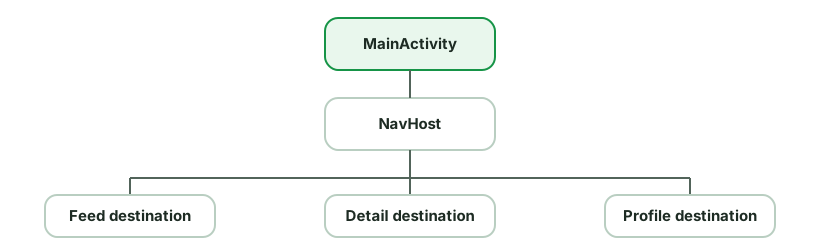
Why it’s recommended (Google’s guidance since ~2018, and the default with Compose):
- Simpler, centralized navigation - one back stack managed by the Nav controller, with type-safe args, deep-link support, and animated transitions, instead of juggling Activity intents and flags.
- Cheaper transitions - switching fragments/composables is lighter than launching Activities (no new window/task setup).
- Easy shared UI & scoped state - shared elements, a persistent bottom nav, and graph-scoped ViewModels (share state across a flow like checkout) are natural.
- Less manifest/lifecycle boilerplate - no per-screen Activity declarations, launch modes, or result plumbing.
- One place for app-wide concerns (insets, theming, snackbars).
Trade-offs / when multiple Activities still make sense:
- Genuinely separate entry points or windows (a share target, a settings screen launched by the system, picture-in-picture).
- Modularization boundaries or legacy code where a feature is its own Activity.
- Integrations that require an Activity (some SDKs,
launchModeneeds).
With Compose: the same idea - a single Activity with a NavHost of composable destinations. Multiple Activities become the exception, not the rule.
What makes an Android component lifecycle-aware?
Lifecycle-aware components observe an owner’s lifecycle and react automatically, instead of you manually wiring start/stop logic into Activity/Fragment callbacks.
The pieces (from androidx.lifecycle):
Lifecycle- holds the current state (INITIALIZED,CREATED,STARTED,RESUMED,DESTROYED) and dispatches events (ON_CREATE,ON_START, …).LifecycleOwner- anything with aLifecycle(Activity, Fragment,viewLifecycleOwner, NavBackStackEntry, the process viaProcessLifecycleOwner).LifecycleObserver- an object that observes those events; implementDefaultLifecycleObserverfor clean callbacks.
class LocationTracker(private val client: LocationClient) : DefaultLifecycleObserver {
    override fun onStart(owner: LifecycleOwner) = client.start()
    override fun onStop(owner: LifecycleOwner)  = client.stop()
}

// In the Activity/Fragment:
lifecycle.addObserver(LocationTracker(client))   // auto start/stop with the lifecycle
Why it matters:
- No leaks / no boilerplate - the component starts and stops itself with the owner; you don’t sprinkle
start()/stop()acrossonStart/onStopand risk forgetting one. - Reusable & testable - the logic lives in one self-contained class, not the Activity.
- It’s the foundation under
LiveData(only updates active observers),lifecycleScope,repeatOnLifecycle, andviewModelScope.
Related:
ProcessLifecycleOwnerobserves the whole app going to foreground/background (e.g. lock the app when backgrounded).- Prefer
DefaultLifecycleObserverover the old annotation-based@OnLifecycleEvent(deprecated).
When should you use WorkManager?
WorkManager is the recommended API for persistent, deferrable background work. An enqueued request is stored and scheduled to run after its constraints are met, including across ordinary process death and device reboot.
val work = OneTimeWorkRequestBuilder<UploadWorker>()
    .setConstraints(Constraints.Builder()
        .setRequiredNetworkType(NetworkType.CONNECTED)
        .setRequiresCharging(true)
        .build())
    .setBackoffCriteria(BackoffPolicy.EXPONENTIAL, 10, TimeUnit.SECONDS)
    .build()
WorkManager.getInstance(context).enqueue(work)
What it gives you:
- Persistent scheduling - work is stored in a database and rescheduled across ordinary app-process death and reboot. It is not an immediate or exact-time execution guarantee, and a user force-stop prevents background execution until the app is started again.
- Constraints - network, charging, battery-not-low, storage, idle.
- Retry/backoff, periodic work, chaining (
beginWith().then()), unique work, and observable status (LiveData/Flow). - Respects Doze and battery limits, picking the right underlying mechanism (JobScheduler, etc.).
When to use which:
| Need | Use |
|---|---|
| In-app async while app is alive (load data) | Coroutines (viewModelScope) |
| Deferrable work that must complete eventually (sync, upload, backup) | WorkManager |
| Immediate, ongoing, user-visible task (music, navigation) | Foreground Service |
| User-visible action that genuinely requires an exact time | AlarmManager, after checking exact-alarm access |
Key distinctions:
- WorkManager ≠ for exact timing - it means “run after constraints are met,”
not “run at exactly 9:00.” Exact alarms are reserved for genuinely
user-intentioned precise actions and may require special access; check
canScheduleExactAlarms()and degrade gracefully when it is unavailable. - WorkManager ≠ for immediate in-app work - if the app is in the foreground and you just need async, coroutines are simpler.
- It supersedes the old
JobScheduler/FirebaseJobDispatcher/AlarmManager+Receivercombos for most background jobs.
Why was startActivityForResult deprecated, and how does the Activity Result API work?
startActivityForResult + onActivityResult had real problems:
- Scattered logic - you launched in one place and handled the result in a giant
onActivityResultwhen(requestCode), far from the call site. - Manual requestCode management - error-prone integer juggling.
- Process-death unsafe - the callback could be lost; state was hard to preserve.
- Tight coupling to Activity/Fragment internals.
The Activity Result API replaces it with type-safe, lifecycle-aware contracts:
// Register at construction time (not after STARTED)
private val pickImage = registerForActivityResult(
    ActivityResultContracts.GetContent()
) { uri: Uri? ->
    uri?.let { showImage(it) }      // result handled right here
}

// Launch from anywhere
button.setOnClickListener { pickImage.launch("image/*") }
Benefits:
- Type-safe contracts -
GetContent,TakePicture,RequestPermission,RequestMultiplePermissions,StartActivityForResult, or a customActivityResultContractwith typed input/output. No requestCodes, no manualIntentparsing. - Result handled at the call site - the callback lives next to where you launch.
- Lifecycle-aware & process-death safe - the registry survives recreation and re-delivers results; you must register before the lifecycle reaches STARTED (i.e. as a field / in
onCreate). - Decoupled - works the same in Activities, Fragments, and even non-UI components via an
ActivityResultRegistry.
Common contracts: runtime permissions (RequestPermission), picking content/photos, taking a picture, and StartIntentSenderForResult.
Optional deep dives
Internals and broader design questions to study after the core material.
Core concepts
Dalvik vs ART, and what are AOT, JIT, and baseline profiles?
Optional deep dive: This is useful after you are comfortable with the everyday version of the topic. Focus on the main idea first; the implementation details are a senior-level follow-up.
The short answer is that modern Android uses ART. Dalvik is useful history, but Junior and Mid candidates should focus on why current apps use a mix of JIT, AOT, and profiles.
Dalvik was Android’s original runtime before Android 5. It compiled code as the app ran using JIT, or Just-In-Time compilation.
ART (Android Runtime) replaced it (Android 5+) and has evolved:
- Android 5–6: full AOT - the entire app was compiled to native code at install time. Fast execution, but slow installs and large storage.
- Android 7+ (the current hybrid): JIT + AOT + profile-guided compilation. The app runs interpreted/JIT first; ART profiles which methods are hot, and during idle/charging it AOT-compiles just those hot paths. Best of both - fast installs, and frequently-used code gets compiled over time.
The terms:
- AOT (Ahead-Of-Time) - compile to native before running (install or build time). Fast at runtime, costs install time/space.
- JIT (Just-In-Time) - compile while running, for hot code. No install cost, but first runs are slower (interpreted).
- Profile-guided - collect which methods are hot, then AOT-compile those.
Baseline Profiles list important code paths such as startup and scrolling. Shipping that list lets ART compile those paths earlier instead of waiting to learn them from usage. The result can be faster first launches and smoother critical interactions. Macrobenchmark tooling can generate and verify them.
Other ART facts:
- ART executes DEX (Dalvik Executable) bytecode - Kotlin/Java →
.class→.dex(via D8) → optimized by R8. - It has improved GC over Dalvik (concurrent, less pause).
How do you build a custom View, and what do you need to handle?
Optional deep dive: This is useful after you are comfortable with the everyday version of the topic. Focus on the main idea first; the implementation details are a senior-level follow-up.
Extend View (fully custom drawing) or an existing widget/ViewGroup (compose existing ones). A typical fully-custom view overrides three things plus constructors.
class RatingView @JvmOverloads constructor(
    context: Context, attrs: AttributeSet? = null, defStyle: Int = 0,
) : View(context, attrs, defStyle) {

    private val paint = Paint(Paint.ANTI_ALIAS_FLAG)   // allocate ONCE, not in onDraw

    init {
        // Read custom XML attributes
        context.obtainStyledAttributes(attrs, R.styleable.RatingView).use { a ->
            paint.color = a.getColor(R.styleable.RatingView_starColor, Color.YELLOW)
        }
    }

    override fun onMeasure(wSpec: Int, hSpec: Int) {
        // Resolve desired size honoring the MeasureSpec
        val size = resolveSize(desiredSize, wSpec)
        setMeasuredDimension(size, size)
    }

    override fun onDraw(canvas: Canvas) {
        canvas.drawCircle(width / 2f, height / 2f, radius, paint)
    }
}
What you must handle:
- Constructors /
@JvmOverloads- XML inflation calls the(Context, AttributeSet)constructor; missing it crashes on inflate. - Custom attributes - declare
<declare-styleable>inattrs.xml, read viaobtainStyledAttributes(and recycle it). onMeasure- respect the parent’sMeasureSpec(EXACTLY/AT_MOST/UNSPECIFIED); useresolveSize. AViewGroupalso needsonLayoutto place children.onDraw- render withCanvas; never allocate (Paint/Path/objects) here - it runs every frame.- State saving - override
onSaveInstanceState/onRestoreInstanceStatefor view state that should survive recreation. - Touch -
onTouchEvent/ gesture detectors; callinvalidate()to redraw,requestLayout()if size changed. - Accessibility - set content descriptions /
AccessibilityNodeInfofor custom controls.
What to remember:
- Allocate paints/objects once; allocating in
onDraw/onMeasurecauses jank and GC churn. invalidate()for redraw vsrequestLayout()for size changes.- Prefer composing existing views or Compose over a fully custom
onDrawunless you genuinely need custom rendering.
How does a touch event move through the Android View system?
Optional deep dive: This is useful after you are comfortable with the everyday version of the topic. Focus on the main idea first; the implementation details are a senior-level follow-up.
A touch event (MotionEvent) travels down the view tree from the root and can be consumed or passed back up. Three methods govern it:
dispatchTouchEvent- everyView/ViewGrouphas it; it routes the event. The tree traversal starts here.onInterceptTouchEvent(ViewGroup only) - a parent can intercept an event before it reaches a child. Returntrueto steal it (e.g. a scroll container deciding a drag is a scroll, not a child tap).onTouchEvent- where a view actually handles the event. Returntrueto consume it (and receive subsequent events in the gesture).
The flow for a gesture (starting with ACTION_DOWN):
- Root
dispatchTouchEvent→ ViewGrouponInterceptTouchEvent. - If the parent doesn’t intercept, it dispatches to the child under the finger; this recurses down.
- The deepest view’s
onTouchEventruns first. If it returnstrue(consumes), it becomes the target for the rest of the gesture (MOVE/UP). - If a view returns
false, the event bubbles up to its parent’sonTouchEvent. - Crucial rule: if no view consumes the
ACTION_DOWN, that view (and its descendants) won’t receive the rest of the gesture.
Key mechanisms interviewers probe:
requestDisallowInterceptTouchEvent(true)- a child tells parents not to intercept (e.g. aViewPagerinside a scroll view, so swipes go to the pager).- Once a parent intercepts, the child gets
ACTION_CANCELand stops receiving the gesture. - This is exactly the kind of logic behind nested scrolling conflicts (“the inner RecyclerView won’t scroll inside a ScrollView”) - solved via
NestedScrollingChild/interception rules.
How does the View rendering pipeline handle measure, layout, and draw, and when should you use invalidate or requestLayout?
Optional deep dive: This is useful after you are comfortable with the everyday version of the topic. Focus on the main idea first; the implementation details are a senior-level follow-up.
A View is rendered in three passes, traversing the view tree top-down:
- Measure (
onMeasure) - each parent passesMeasureSpec(a mode + size:EXACTLY,AT_MOST,UNSPECIFIED) to children; each child reports its desired size viasetMeasuredDimension. Determines how big. - Layout (
onLayout) - parents position children by callingchild.layout(l, t, r, b). Determines where. - Draw (
onDraw) - each view renders itself onto aCanvas, parents before children.
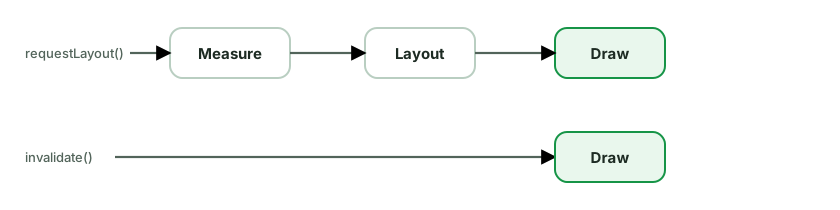
invalidate() vs requestLayout() - the key distinction:
invalidate()- “I need to redraw, but my size/position is unchanged.” Schedules only the draw pass for that view. Use when only appearance changes (color, text content of same size).requestLayout()- “My size or position may have changed.” Triggers a full measure + layout (+ draw) pass, walking up to the root and back down. More expensive.
Using the wrong one is a classic bug: change content that affects size but only call invalidate() → the view redraws but is clipped/wrong size because it wasn’t re-measured.
Performance points:
- Avoid deep view hierarchies - each level adds measure/layout cost (mitigated with
ConstraintLayoutto flatten,mergetags,ViewStub). - Don’t allocate in
onDraw/onMeasure- they run on every frame/pass; allocate paints/objects once. - Overdraw - drawing the same pixel multiple times; minimize overlapping backgrounds (debug with “Show overdraw”).
- A double measure pass (e.g.
RelativeLayout,weightinLinearLayout) is costly in lists.
Compose parallel: Compose’s phases are the same idea (composition → layout → drawing), but layout is single-pass by design.
Discussion
Comments are powered by GitHub Discussions. Sign in with GitHub to join in.