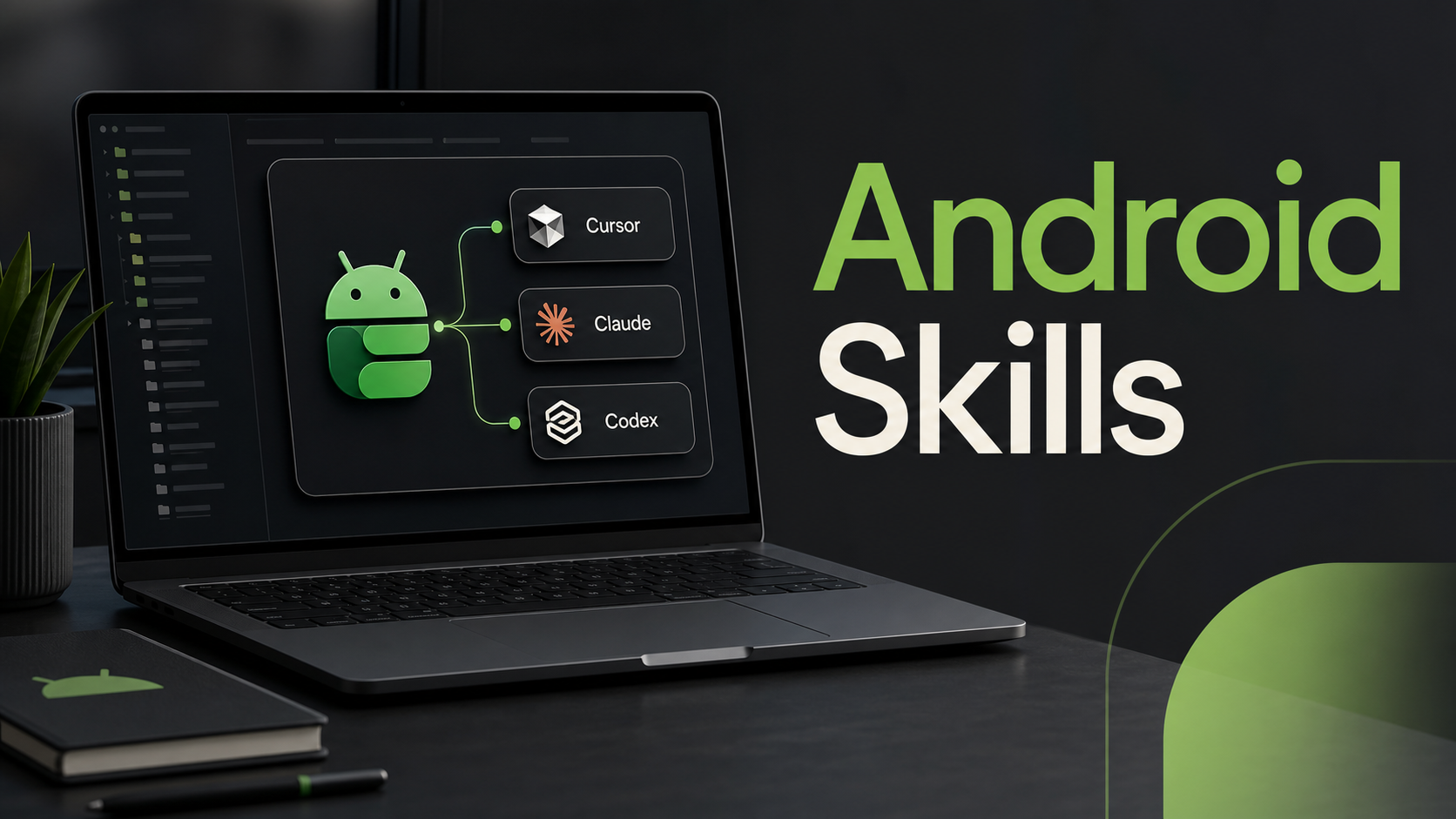
Android work has a lot of sharp edges that do not show up in generic coding examples. R8 rules, edge-to-edge layouts, Navigation 3, Perfetto traces, Play Billing upgrades, Wear Compose, and Android XR all need current guidance and a fair amount of context.
That is the point of android/skills. It
is Google’s public repository of Android-focused agent skills: small packages of
instructions, references, and sometimes scripts that tell an AI coding agent how
to handle a specific Android workflow.
They are not magic prompts. Think of them as task manuals that your agent can load only when needed.
What Android Skills are
An Android Skill is a folder with a SKILL.md file inside it. The file explains
when the skill should be used and what workflow the agent should follow. Many
skills also include a references/ folder with official Android documentation,
checklists, migration notes, or supporting files.
The repository follows the open Agent Skills standard, so the shape is not tied to one model or one editor. That matters because Android teams rarely use only one tool. One developer may use Cursor, another may use Claude Code, and another may use Codex from the terminal or desktop app. The skill format gives each of those tools the same Android-specific starting point.
Google’s current Android Skills repository includes skills for areas such as:
- R8 configuration analysis
- edge-to-edge layout migration
- AGP 9 upgrades
- Navigation 3
- migrating XML views to Jetpack Compose
- adaptive Compose layouts
- CameraX migration
- Play Billing Library upgrades
- Perfetto SQL and trace analysis
- Android intent security
- testing setup
- Wear Compose Material 3
- Android XR and Jetpack Compose Glimmer
That list will change, so do not hard-code your mental model around it. Run
android skills list when you want the current set.
Why use them
Use Android Skills when the task depends on Android-specific rules that a general model may half-remember.
Good examples:
- “Audit my R8 rules and remove redundant keeps.”
- “Move this app to edge-to-edge for target SDK 35.”
- “Migrate this old XML screen to Compose without losing behavior.”
- “Check whether this intent handling code is safe.”
- “Help me query this Perfetto trace.”
- “Upgrade Play Billing and point out the migration steps.”
Poor examples:
- “Create a Kotlin data class.”
- “Explain what a ViewModel is.”
- “Write a basic Compose button.”
For the basic stuff, your agent probably already has enough context. Skills are most useful where the cost of a plausible-but-wrong answer is high.
Install Android CLI first
The cleanest way to install and update Android Skills is through Android CLI.
Install it from the official Android CLI page,
then verify that the android command is available:
command -v androidIf that prints a path, continue.
Initialize the base Android CLI skill:
android initList available Android Skills:
android skills list --longSearch for a skill:
android skills find "r8"Install one skill:
android skills add --skill=r8-analyzer --project=.Install every Android Skill:
android skills add --all --project=.Run the same command later to update installed skills. One important warning:
if you edit an installed Android Skill in place, android skills add can
overwrite it during an update. Rename your customized copy if you want to keep
local changes.
Cursor setup
Cursor supports Agent Skills and can import them from GitHub.
Use this route when you want Cursor to read Android Skills directly from the repository:
- Open Cursor.
- Open Customize from the sidebar.
- Go to Rules.
- Click Add Rule.
- Choose Remote Rule (Github).
- Enter this repository URL:
https://github.com/android/skillsAfter importing, open Customize and go to Skills. Cursor shows skills from plugins and projects in the Agent Decides section. That means you do not need to paste the whole skill into every chat. Ask for the Android task directly, or mention the skill name when you want to force the context.
Example prompts:
Use the Android edge-to-edge skill to update this app for target SDK 35.Audit this module with the Android R8 analyzer skill and tell me which keep rules
are redundant before editing anything.If you prefer local project skills instead of a remote import, copy the specific
skill folder from android/skills into your project’s .cursor/skills/
directory. Keep the original folder structure, including SKILL.md and any
references/ files.
Claude Code setup
Android CLI can install skills into detected agent directories. Use the explicit agent flag when you want the install to target Claude Code:
android skills add --agent='claude' --skill=r8-analyzer --project=.Install all Android Skills for Claude Code:
android skills add --agent='claude' --all --project=.Then restart Claude Code or start a new session so it can rescan the available skills.
Check that the skill is visible by asking Claude Code:
What Android skills are available in this project?Use a skill by naming the task naturally:
Use the Android Navigation 3 skill to review this navigation graph and suggest a
safe migration plan.
If your Claude Code setup does not pick up the Android CLI install, use the manual project location:
mkdir -p .claude/skills
git clone https://github.com/android/skills /tmp/android-skills
cp -R /tmp/android-skills/performance/r8-analyzer .claude/skills/r8-analyzer
Replace performance/r8-analyzer with the skill folder you actually want. Keep
the SKILL.md file at the root of the copied skill folder.
Codex setup
Codex supports Agent Skills in the CLI, IDE extension, and Codex app. It can load skills from repo, user, admin, and system locations.
For a repo-specific setup, use Codex’s documented repo skills directory:
mkdir -p .agents/skills
git clone https://github.com/android/skills /tmp/android-skills
cp -R /tmp/android-skills/system/edge-to-edge .agents/skills/edge-to-edge
cp -R /tmp/android-skills/performance/r8-analyzer .agents/skills/r8-analyzer
Restart Codex if the new skills do not appear immediately.
You can also use Android CLI with the Codex agent target:
android skills add --agent='codex' --skill=r8-analyzer --project=.Install all Android Skills for Codex:
android skills add --agent='codex' --all --project=.In Codex, invoke a skill explicitly with $skill-name or ask for the Android
task in normal language. Explicit invocation is better when you know exactly
which skill should guide the work.
Example prompts:
$edge-to-edge update this Compose app for target SDK 35. Make the smallest code
change first, then run the relevant tests.
$r8-analyzer inspect the release build configuration and explain which keep
rules are still necessary.If you want Android Skills available across every repo, copy skill folders into your user skills directory instead:
mkdir -p ~/.agents/skills
cp -R /tmp/android-skills/system/edge-to-edge ~/.agents/skills/edge-to-edge
Use repo-level skills for team workflows. Use user-level skills for personal tooling.
A sensible first install
Do not install everything just because you can. Start with the skills that match your current app.
For a normal production Android app, I would start here:
android skills add --skill=edge-to-edge --project=.
android skills add --skill=r8-analyzer --project=.
android skills add --skill=testing-setup --project=.
android skills add --skill=android-intent-security --project=.
Then add specialized skills only when the app needs them:
android skills add --skill=navigation-3 --project=.
android skills add --skill=play-billing-library-version-upgrade --project=.
android skills add --skill=perfetto-trace-analysis --project=.
android skills add --skill=wear-compose-m3 --project=.
If a command says the skill name is not found, run:
android skills list --longSkill names can change as the repository evolves.
How to work with a skill
The best way to use a skill is to give the agent a real task and real files.
Weak prompt:
Use Android skills.Better prompt:
Use the Android R8 analyzer skill. Inspect the release configuration for the app
module, identify redundant keep rules, and do not edit files until you explain
the proposed removals.
Even better:
Use the Android edge-to-edge skill. Update MainActivity and the Compose screens
under app/src/main/java/com/example/settings for target SDK 35. Preserve existing
behavior, run tests if available, and show me any screens that still need manual
visual review.
That gives the skill room to do what it is good at: constrain the agent’s work to the Android workflow instead of asking it to guess the process from scratch.
When not to rely on it blindly
Skills improve the starting point, but they do not remove engineering judgment. You still need to review the diff, run the app, and check behavior on real devices when the change touches UI, billing, performance, storage, security, or startup.
Treat Android Skills as a better checklist, not an autopilot button.
They are especially useful when you want the agent to slow down and follow a known Android path: read the relevant files, apply current guidance, run the right commands, and explain the tradeoffs before making risky edits.
That is the real value. Not “AI writes Android for you.” More like: the agent stops acting like every repo is a generic Kotlin project.
Discussion
Comments are powered by GitHub Discussions. Sign in with GitHub to join in.